> For the complete documentation index, see [llms.txt](https://docs.reveald.com/technical-documentation/llms.txt). Markdown versions of documentation pages are available by appending `.md` to page URLs; this page is available as [Markdown](https://docs.reveald.com/technical-documentation/data-sources-early-access/vmware-vsphere/add-vsphere-as-a-data-source-within-the-console.md).
# Add vSphere as a Data Source within the Console
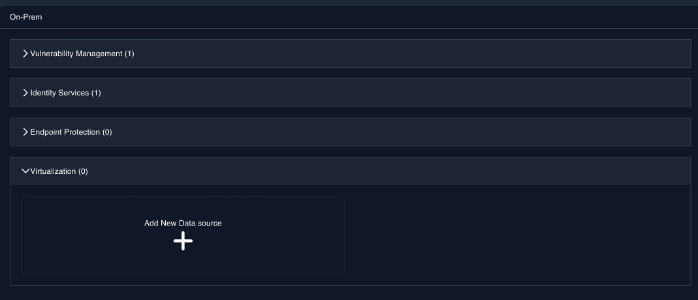
Navigate to Source Management / Configuration / On-Prem / Virtualization in the Epiphany console
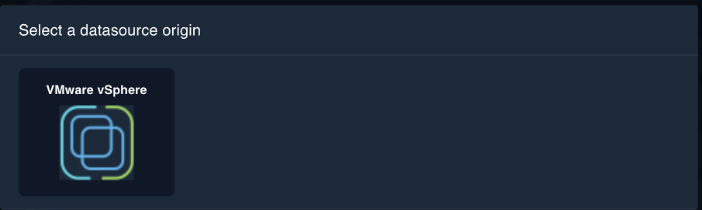
Click on the VMware vSphere data source
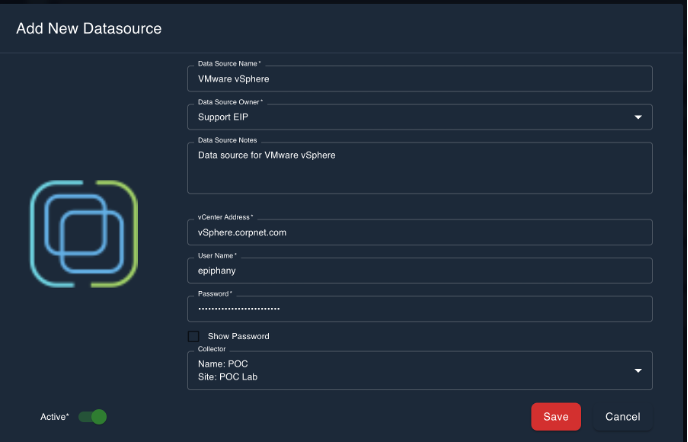
Add a data source name, select an owner and add a pertinent notes about the data source. Enter the vCenter hostname in FQDN format and the vCenter username and password. Select the on-prem Epiphany collector it will be assigned to, mark the data source as ‘active’ and save.