# Path Finder

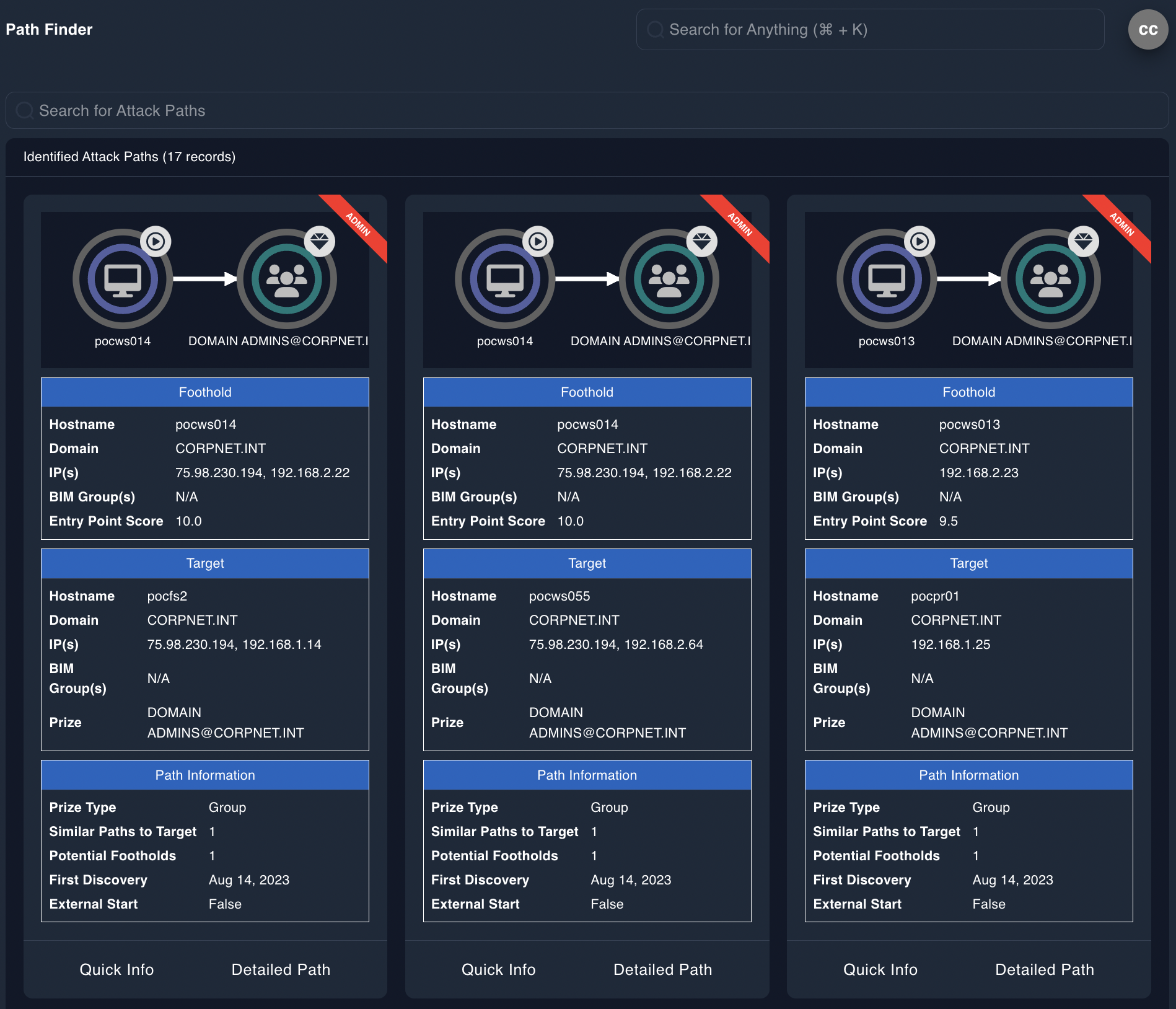
Attack paths identify the biggest material risks in your organization. You can view attack paths in Epiphany’s path finder:

* In the left navigation menu, expand **Attack Path Tools** and then select **Path Finder**.

<figure><img src="/files/B5XuZScpp0jRJMWmksIt" alt=""><figcaption><p>Path Finder</p></figcaption></figure>

Attack paths are based on calculations and evaluations of how hard it is for an attacker to transition from one spot to another, and how valuable of a "prize" that an attacker can gain. Epiphany analyzes details such as:

* What kind of resistance there is along the way (the difficulty of leveraging a vulnerability, the presence of endpoint protection, etc.)?
* What value is inside the attack path (does progression along the path increase the ability of an attacker to go further)?
* What ultimate goal or prize is at the end of an attack path? How impactful or detrimental could it be to the organization if an adversary accesses that goal?

### Quick Info

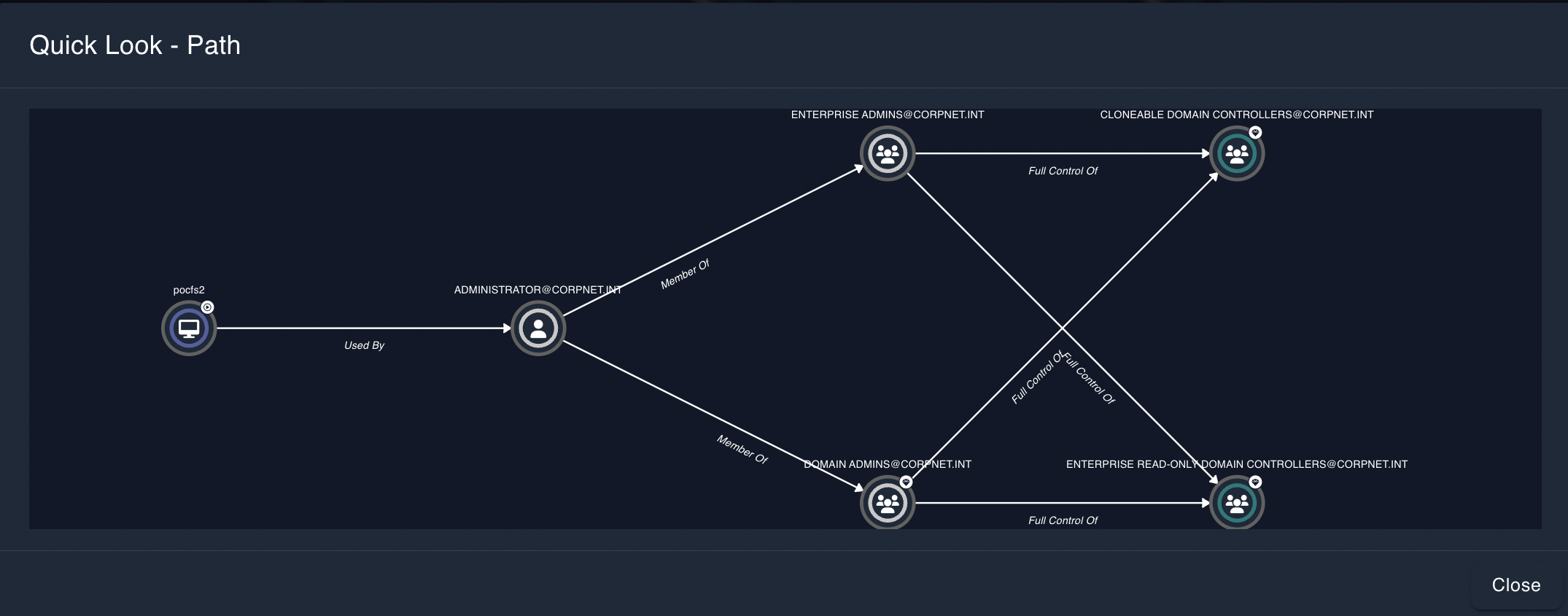
At the bottom of each tile, there are **Quick Info** and **Detailed Path** options. Select **Quick Info** to see a view of an attack path.&#x20;

<figure><img src="/files/ai7MiH7JAH2gXxMJYCjl" alt=""><figcaption><p>attack path quick look</p></figcaption></figure>

### Detailed Path (Risk Explorer)

To see more detailed information about the path, select **Detailed Path**. This view provides access to much information about the path. You essentially see the same path as the **Quick Info** view. However, in the **Detailed Path** view, you can select or roll over various areas to get additional information.&#x20;

<figure><img src="/files/7voMbF7B7MQyIoYpIDFf" alt=""><figcaption></figcaption></figure>

This view is home to much detailed information to help resolve attack paths. Roll your mouse over or select the various icons to display a wealth of useful information:

* Select the <img src="/files/vxH2FZZPvHJCu5LYjwlK" alt="" data-size="line"> tools icon in the upper-right corner to see a list of the **Top Recommendations** of steps to take to remove risk from the attack path. Select the left-pointing arrow to remove the list. \
  &#x20;<br>

  <figure><img src="/files/9Zzhke99pweAtPDno2j5" alt=""><figcaption><p>Attack path top reccomendations</p></figcaption></figure>

  attack path top reccomendations
* Select an icon in the view (such as the workstation icon on the far left or a circled "!")  to see a pop-up providing information about relationships and recommended steps for preventing a potential breach, along with the outcome of addressing it. In this view, if there are numbers at the bottom, select them to step through additional recommendations. There may be many different ways to break an attack path, some more acceptable based on business impact than others - each recommendation will offer an outcome that may also break other attack paths.&#x20;
* Note that you can assign a ticket to the item, which gives you the ability to assign a person to address the issue. Epiphany's [ticketing system](/technical-documentation/admin-guides/epiphany-intelligence-platform-administrator-guide/epiphany-tools/tickets.md) has many features you can use to watch the status and progress of each ticket. <br>

  <figure><img src="/files/Msrmxm0N94zSJw6IA4mp" alt=""><figcaption><p>Attack Path Remediations</p></figcaption></figure>
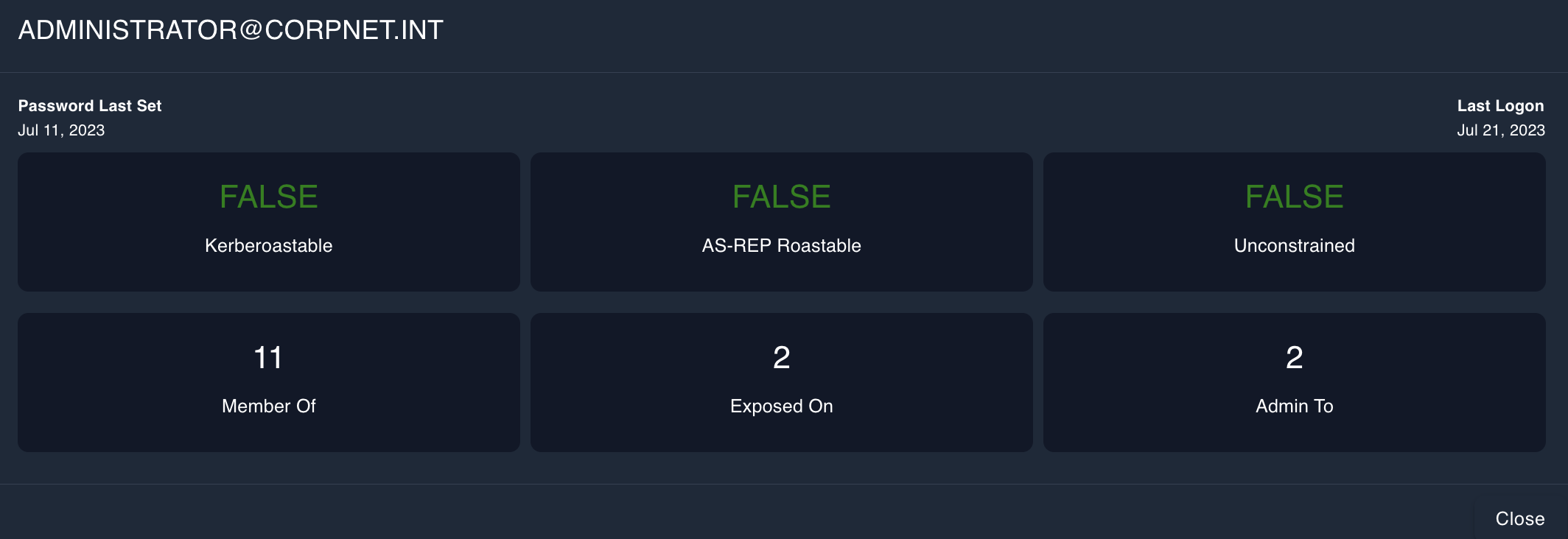
* If you roll your mouse over an icon, a circled "i" (for "information) appears. Select the icon to display information about the node.&#x20;

<div align="right"><figure><img src="/files/IrFDw6PYBa3PbP8EHKqx" alt=""><figcaption></figcaption></figure></div>

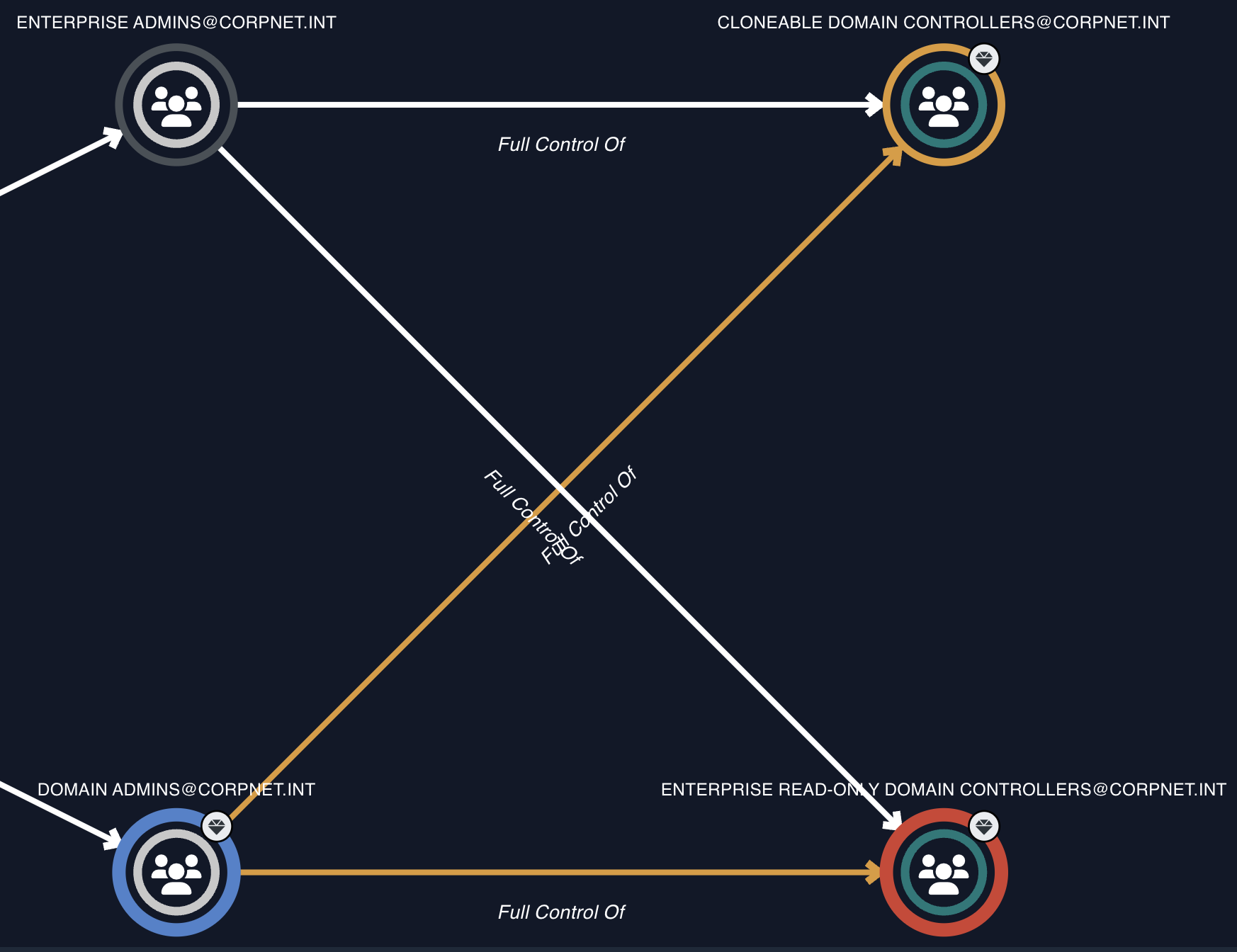
* If you roll over an icon, colors change to indicate areas of material risk (orange) or critical material risk (red). In the image below, notice the words "Full Control Of" indicating that users or groups could potentially access critical items such as domain controllers. This is an example of where you can roll your mouse over the "jewel" icon and it changes to a "circle-i" icon that you can click on to get the detailed resolution information shown above.&#x20;

  <figure><img src="/files/gznUVqsF0woZQb7DymfF" alt=""><figcaption><p>Attack path node detail</p></figcaption></figure>


---

# Agent Instructions: Querying This Documentation

If you need additional information that is not directly available in this page, you can query the documentation dynamically by asking a question.

Perform an HTTP GET request on the current page URL with the `ask` query parameter:

```
GET https://docs.reveald.com/technical-documentation/admin-guides/epiphany-intelligence-platform-administrator-guide/epiphany-tools/path-finder.md?ask=<question>
```

The question should be specific, self-contained, and written in natural language.
The response will contain a direct answer to the question and relevant excerpts and sources from the documentation.

Use this mechanism when the answer is not explicitly present in the current page, you need clarification or additional context, or you want to retrieve related documentation sections.